How to Turn Your ChatGPT/Claude/Gemini History into Andrey Karpathy's LLM-Wiki Mindmap
Share to
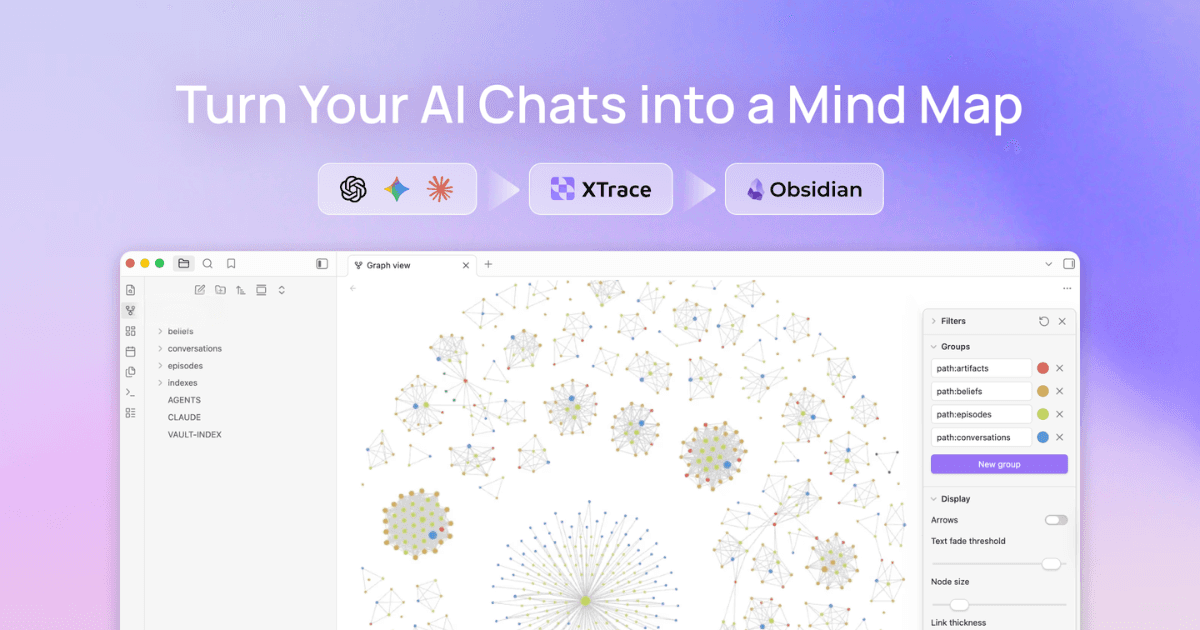
XTrace MemHub — LLM-Wiki Mindmap Guide
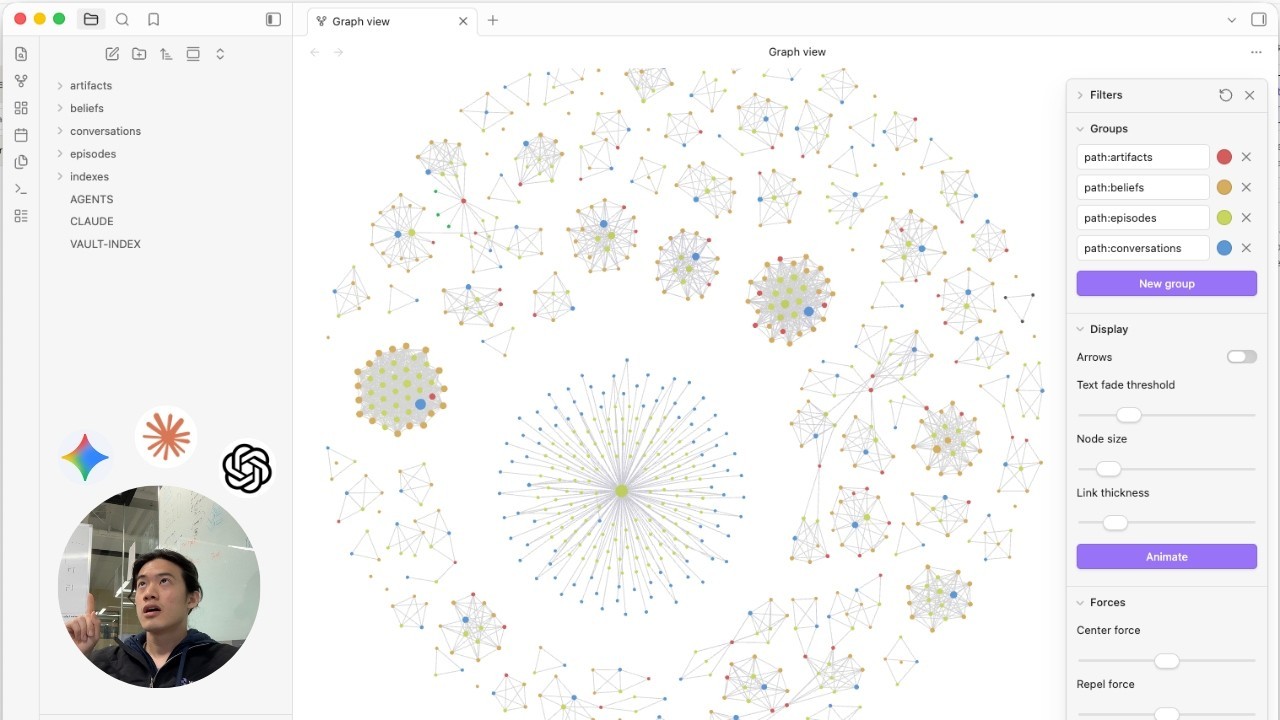
Turn your ChatGPT, Claude, and Gemini history into an Andrey Karpathy's LLM-Wiki mindmap — structured Markdown you can browse in Obsidian-style tools and explore as a graph in MemHub.
MemHub is your context control panel for AI agents. This guide walks through exporting chat history, importing it into MemHub, exploring the Mindmap, and downloading a Markdown ZIP (“Mindmap Markdowns”) for your second brain — without writing code or using Claude Code.
MemHub extracts AI memory and context from your chats, stores it in an encrypted vector database, and organizes it in a file layout that tools like Obsidian work well with.
Watch

Quick links
Link | Description |
|---|---|
Web app | |
Capture context from the browser (including Gemini in-product) |
1. Install the Chrome Extension
These steps match the in-product Instructions panel when ChatGPT is selected in MemHub.
Go to MemHub Chrome extension
Add XTrace Memory to your browser.
2. Export from ChatGPT (OpenAI) / Claude (Anthropic) / Gemini (Google)
Open ChatGPT/Claude/Gemini in your browser.
Click the XTrace Memory extension in the Extensions.
Sign in
You would see a Memory button at your top right, click it
Click export the last N chats you have. Recommend you to put a smaller number if you not sure how much
3. Go to MemHub and Wait
It could take a few minutes for AI to search through your data and extracts memories. Go to MemHub to see your memories getting created in realtime
4. Export Markdown (LLM-Wiki ZIP)
On Memories, click Export (download icon).
The modal title is Export Markdown — subtitle ZIP for Mindmap Markdowns.
Adjust optional filters:
Scope: Beliefs (facts), Artifacts, Episodes
Date range (leave empty for all time)
Platform: memhub, chatgpt, gemini, claude, other
Belief type / Artifact type
Content density: Full (YAML + body) vs Compact
Link style: Standard vs Relationship (wikilinks for supersession, linked facts, etc.)
We suggest keep everything as default
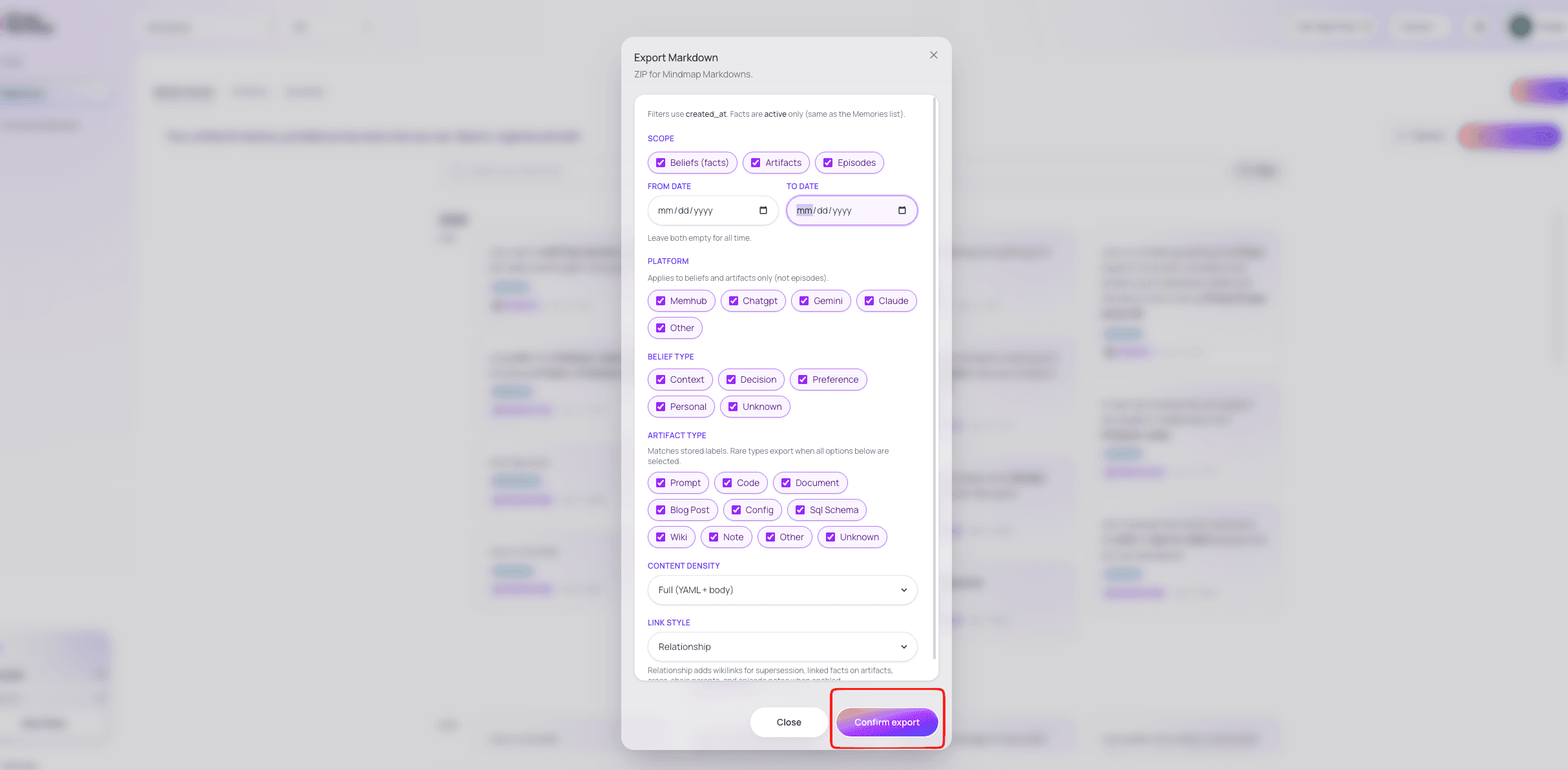
Click Confirm export and save the ZIP.
Unzip into your Obsidian vault or any Markdown wiki.
5. View on Obsidian
Make sure your downloaded file is unzipped
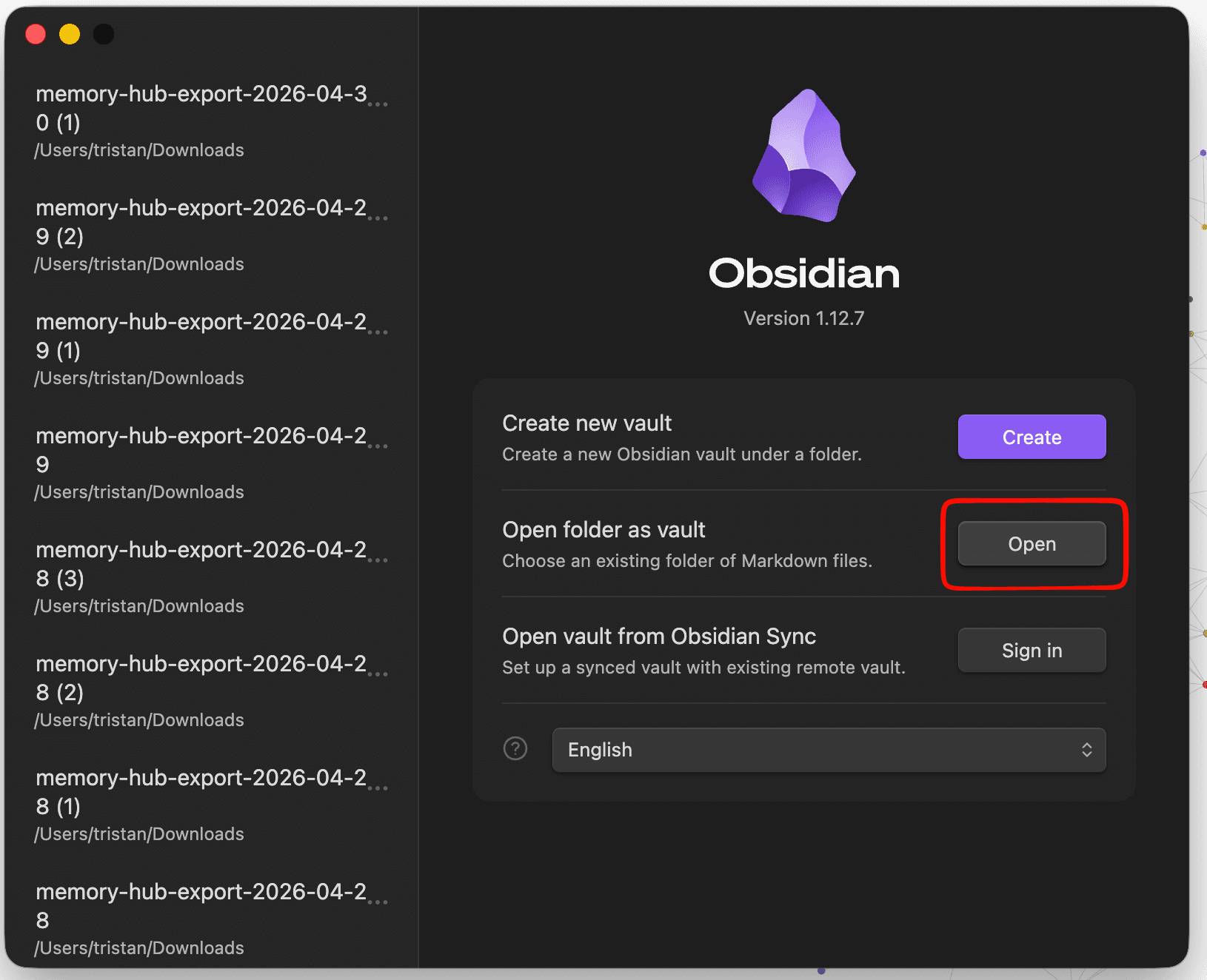
Open your Obsidian app
On the top of the window, File -> Open Vault -> select the unzipped folder -> Open
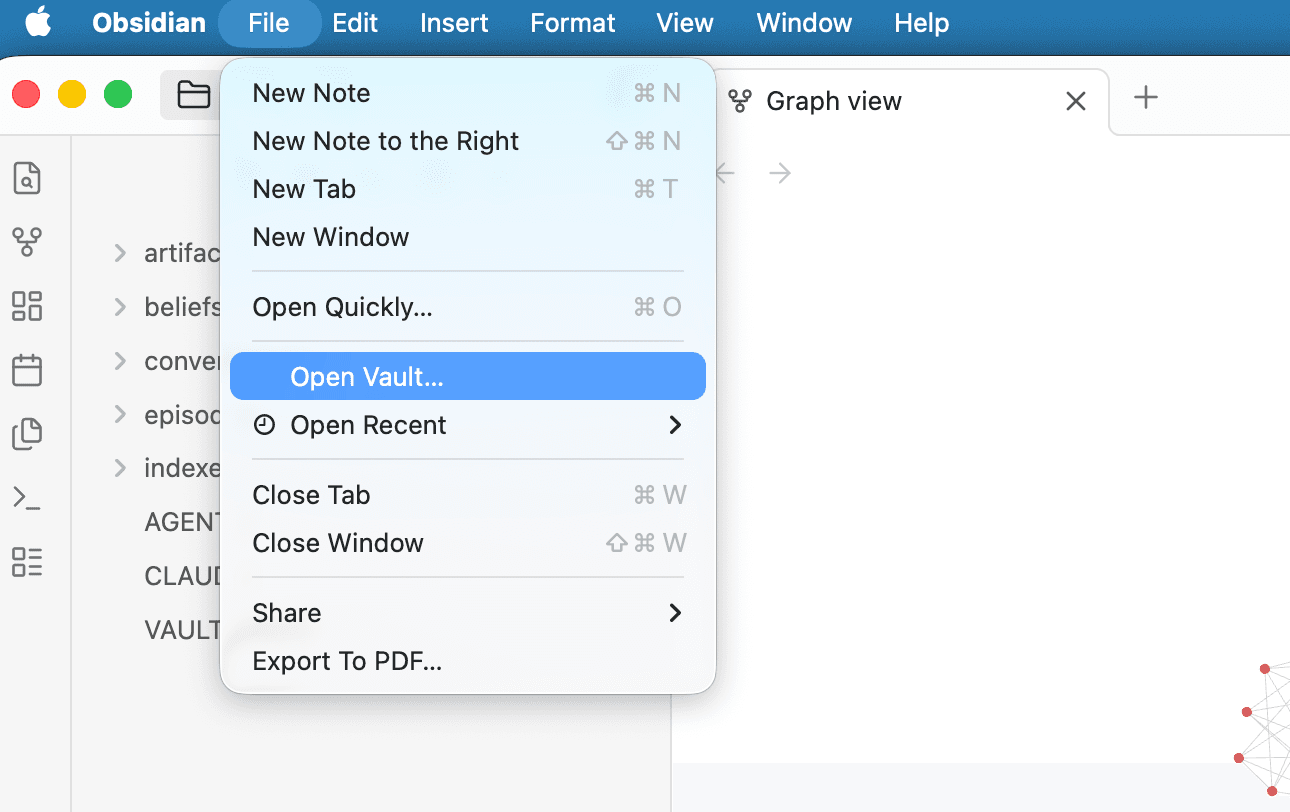
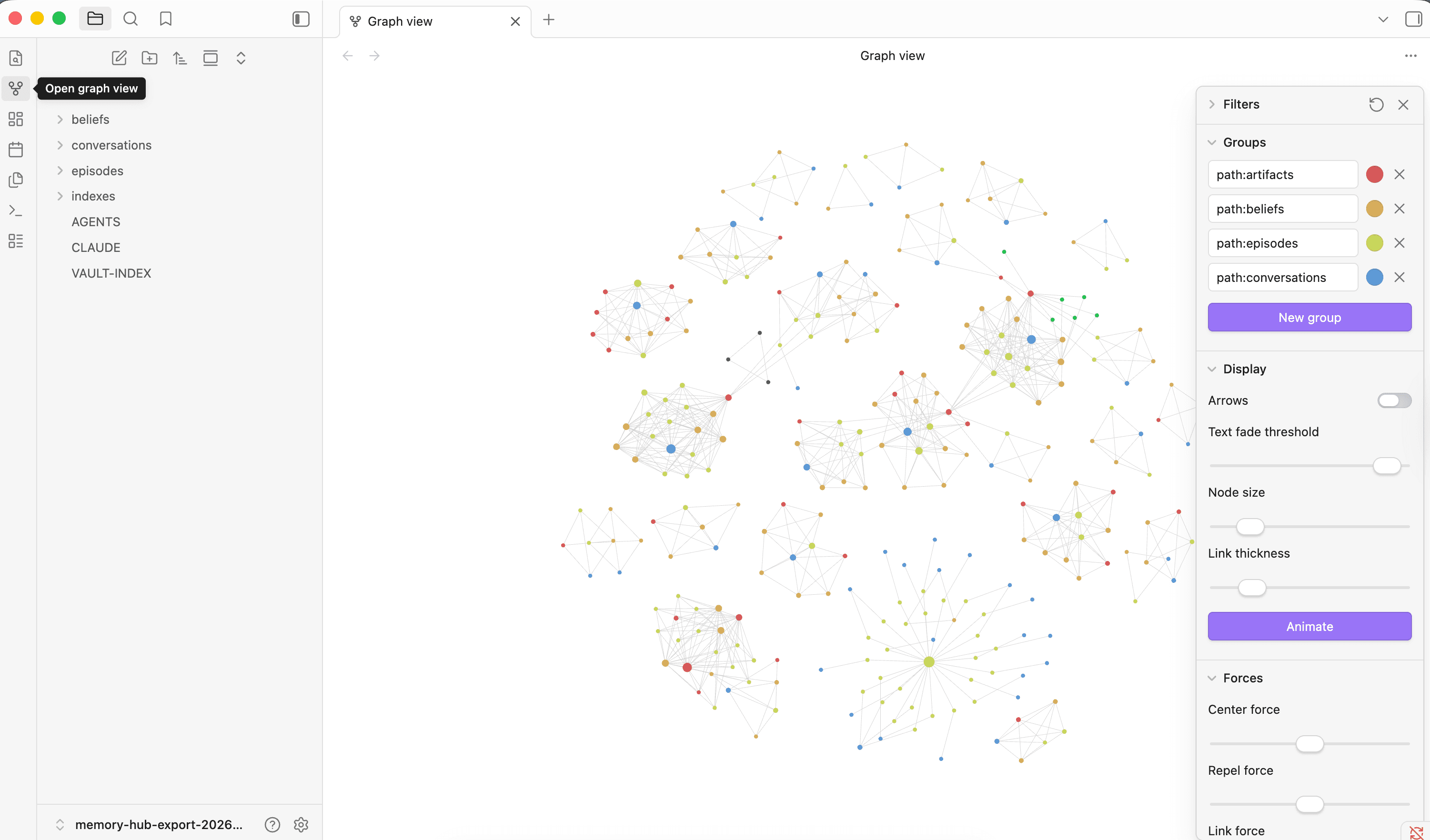
4. On the left sidebar, click Open graph view
Frequently asked questions
Can I use it without coding?
+
Yes. MemHub is designed to be a no-code tool. Any one can use the extension for free to export chat history and generate their mindmap
What kind of memory can I use?
+
MemHub supports ChatGPT, Gemini, Claude.
Do i need to download Obsidian?
+
If you want to view it in your local and have all the markdown files, yes. MemHub also supports on platform view including 3D and 2D view
Back to articles