How to Manage Your Gemini Memory
Share to
Gemini's memory feature lets the AI learn about you across conversations. That's genuinely useful. Tell it once that you're a product manager who prefers structured answers, and it'll adapt. Mention you're vegetarian, and future recipe suggestions will reflect that.
But most people don't realize how much Gemini now stores. Details you mention in passing — your job, your interests, opinions you share, things you're working on — can all feed into its memory without you explicitly asking it to save them. And because Gemini is deeply woven into Google's ecosystem, what it knows about you can feel more expansive than other AI tools.
If you're using Gemini regularly, it's worth knowing exactly what's stored and how to manage it. This guide walks through every step.
1. What Gemini Memory Actually Is
There are two types of memory at work when you use Gemini:
Memory (Personal context): Gemini learns from your past chats to understand you and personalise future responses. You can also give it standing instructions — like "always start with a TL;DR" or "use bullet points for long paragraphs" — that apply across every conversation. Both live under Personal context in settings.
Gemini Apps Activity: The full log of every conversation you've had with Gemini. This is stored in your Google Account separately from Personal context, and it's what Google may use to improve its models.
Turning one off doesn't affect the other — so it's worth checking both.
2. How to Get to Gemini's Settings
On a standard Gemini account, all memory controls are accessed through the Settings cog (⚙️) in the bottom-left corner of the Gemini interface. Click it and a panel opens with everything you need.
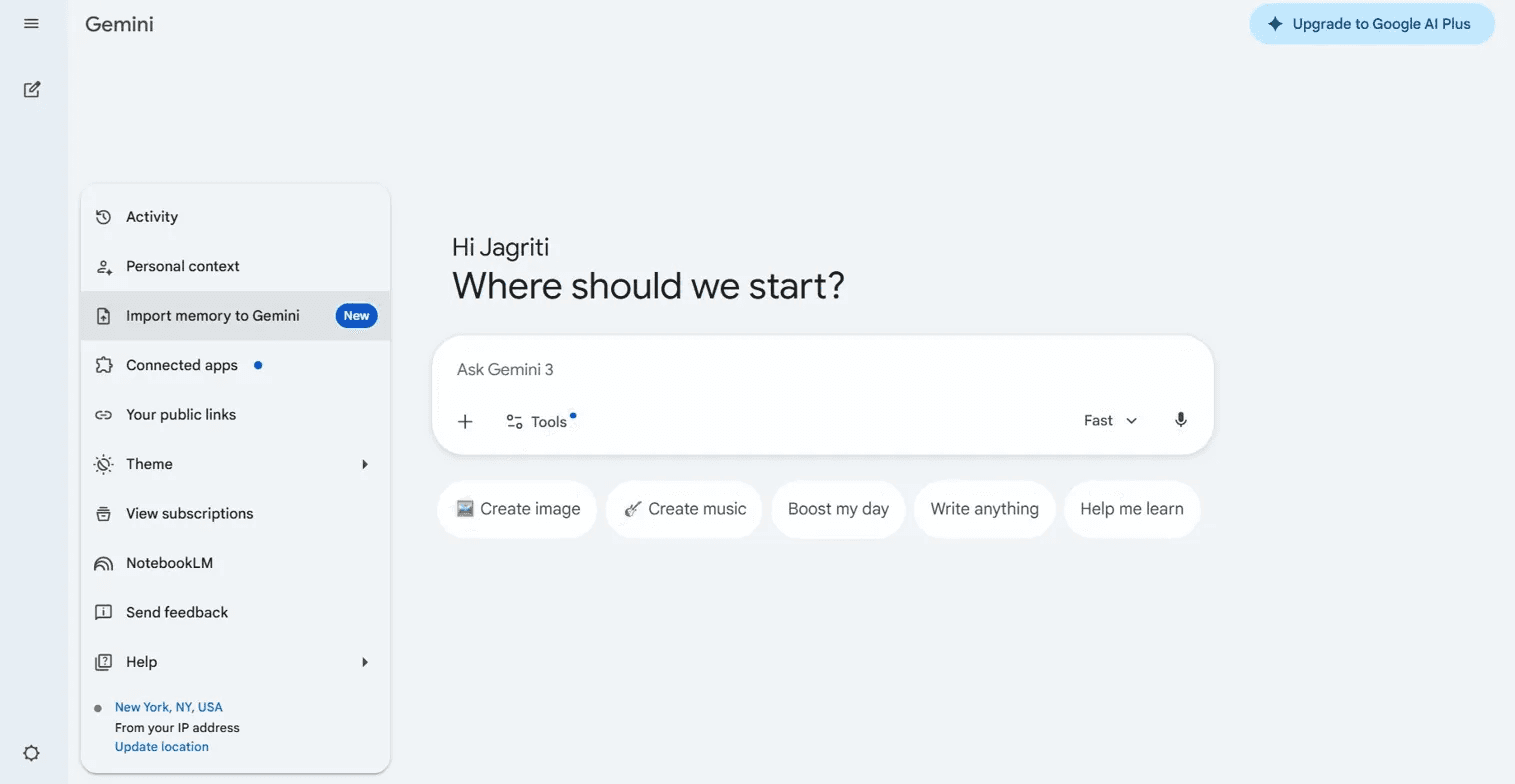
The two options you'll use most for memory management are:
Personal context — to manage what Gemini learns and remembers about you
Activity — to view and delete your full conversation history
3. How to View Your Personal Context
Personal context is where Gemini's memory lives. Here you'll find the memory toggle and your saved instructions.
Click the Settings cog (⚙️) in the bottom-left
Select Personal context
You'll land on a page with two sections:
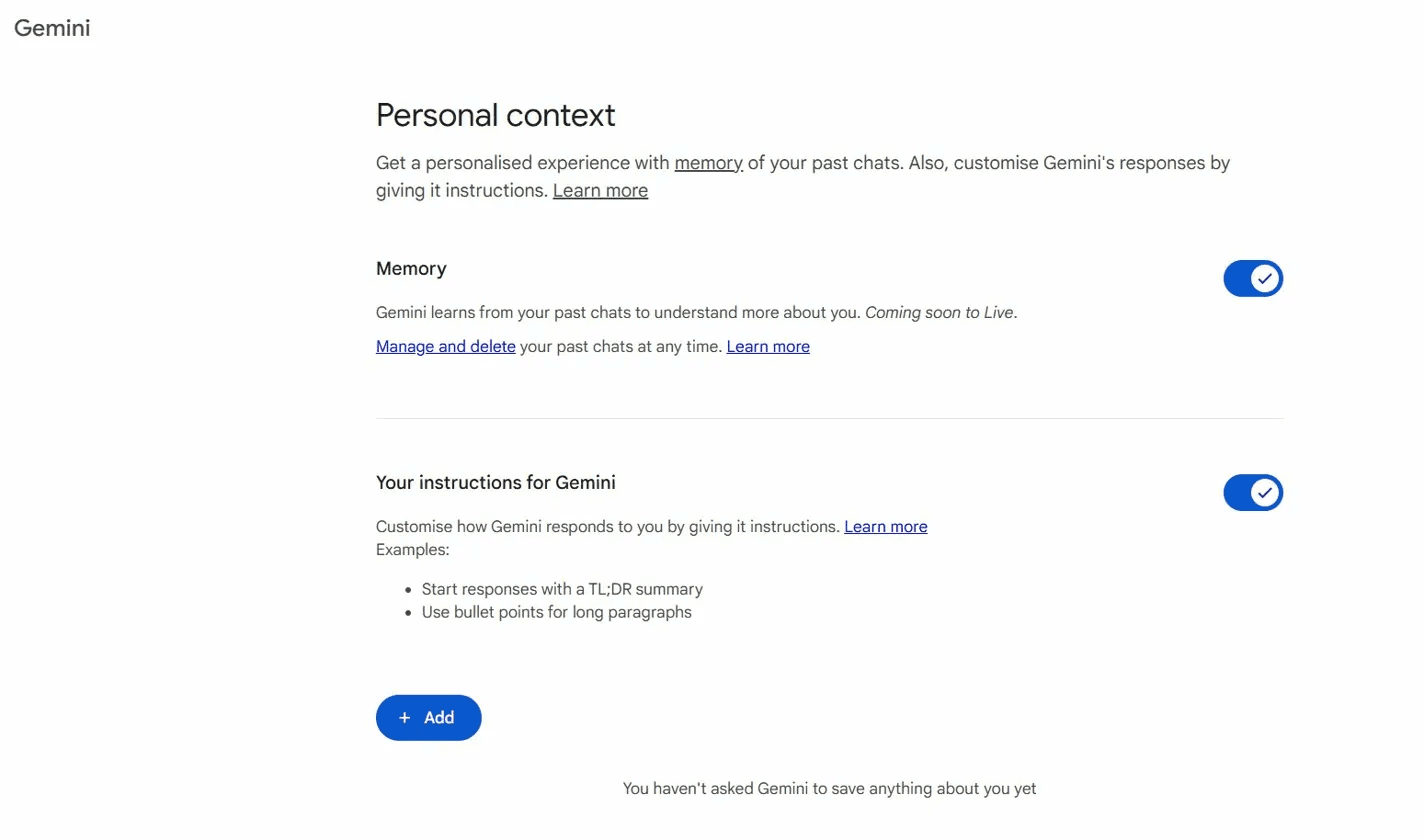
Memory — when on, Gemini learns from your past chats to understand you better over time.
Your instructions for Gemini — standing instructions that apply across all chats. Click Add to set new ones.
💡 Direct link: Jump straight to Personal context at gemini.google.com/personal-context
4. How to Delete a Specific Saved Memory
If Gemini has stored something you'd rather it forget — an old preference, a project you've moved on from, a detail you shared in passing — you can remove individual entries without wiping everything.
Go to Settings (⚙️) → Personal context
Scroll to your list of saved facts
Click the three-dot menu next to the entry and select Delete
You can also do this conversationally. In any chat, type "Forget that I mentioned [X]" and Gemini will remove it and confirm.
5. How to Turn Off Memory Entirely
If you'd rather Gemini not learn from your past chats at all, you can turn Memory off completely.
Go to Settings (⚙️) → Personal context
Find the Memory section
Toggle Memory to Off
This stops Gemini from referencing your conversation history to personalise future responses. It doesn't delete what's already been learned — so if you want a full reset, turn the toggle off and then clear your saved facts individually.
🔵 Still want personalisation — just not Google's version? Turning off Memory means Gemini stops adapting to you, but you also lose any record of what it knew. The XTrace extension solves the second half: it captures your AI context privately as you work, so you keep your own copy of what you've shared and what's been useful, stored separately from Google's systems.
6. How to View and Delete Your Activity History
Gemini Apps Activity is the full log of your conversations — separate from Personal context, and equally important to manage.
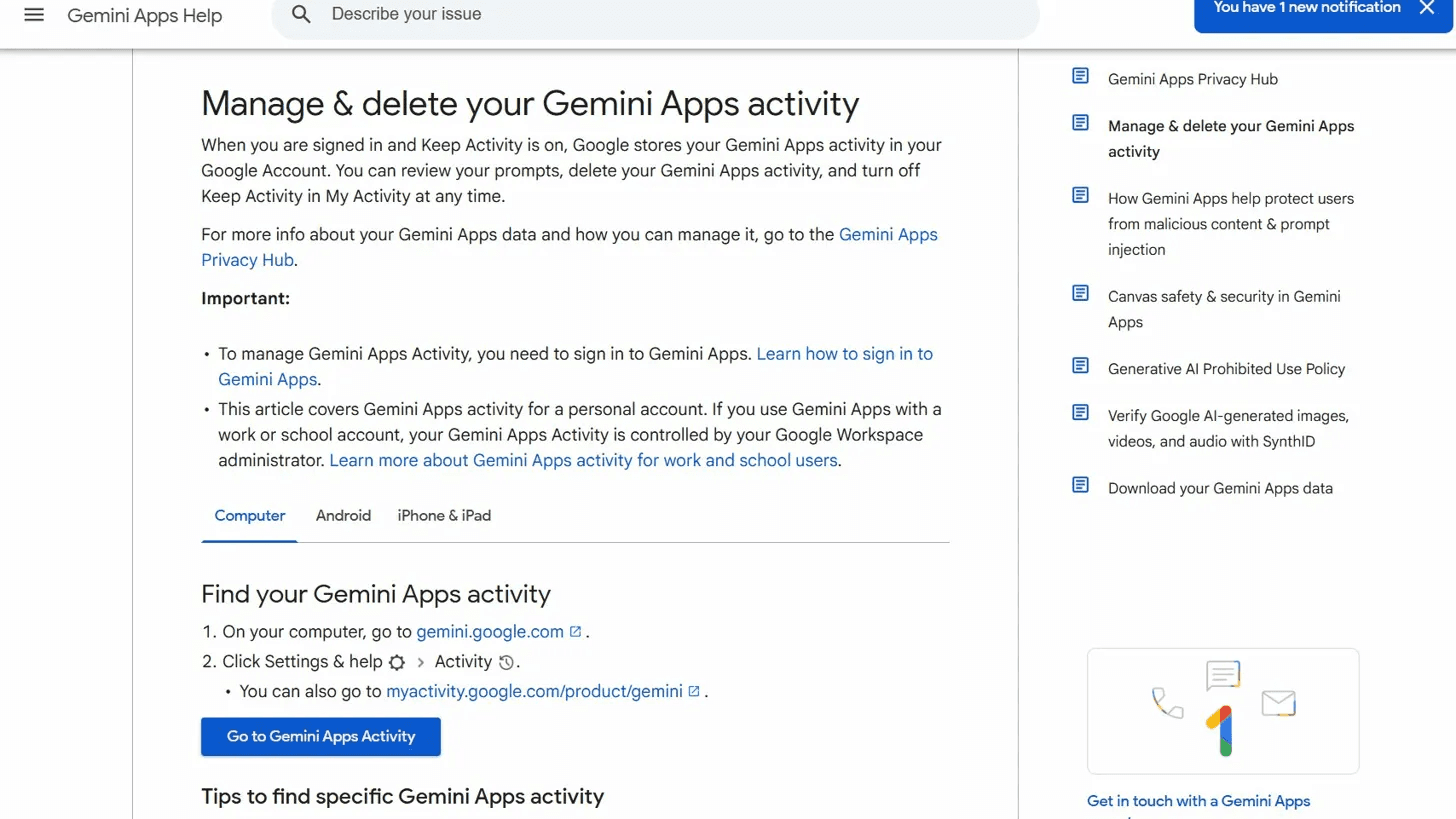
Click Settings (⚙️) → Activity
You'll land on your Gemini activity page at myactivity.google.com
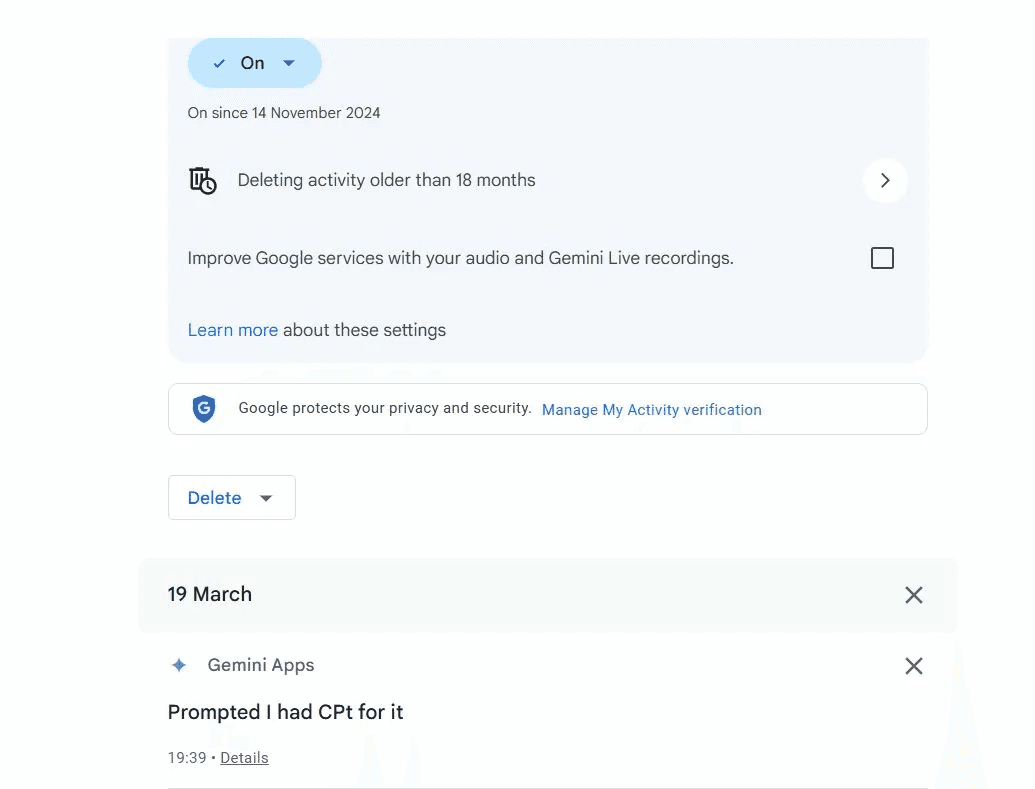
From here you can:
Delete individual conversations — click the ✕ next to any entry
Delete all activity — click the Delete dropdown → All time
Set auto-delete — by default set to 18 months; click it to change to 3 or 36 months
⚠️ Important: Deleting your activity removes past conversations but doesn't stop Gemini from logging new ones. To stop new activity being saved, use the On/Off toggle at the top of the same page.
7. How to Stop Gemini Saving Activity Entirely
If you want Gemini to stop logging your conversations altogether:
Go to Settings (⚙️) → Activity
Click the On button at the top of the page to toggle activity Off
Confirm when prompted
With activity off, Gemini won't store your conversations in your Google Account or use them to personalise future responses.
🔵 Still want continuity — just not Google's version? Turning off activity means Gemini loses all context between sessions. If your real concern is privacy rather than losing the benefit entirely, the XTrace extension gives you persistent context that you own and control — encrypted, separate from Google's systems, and usable across Gemini, ChatGPT, Claude, and more.
8. Use Temporary Chat for Private One-Off Sessions
If you want to ask Gemini something sensitive without it appearing in your activity or affecting your memory, Temporary Chat gives you an incognito-style session.
Click the hamburger menu (☰) in the top-left of the Gemini interface
Select Temporary chat
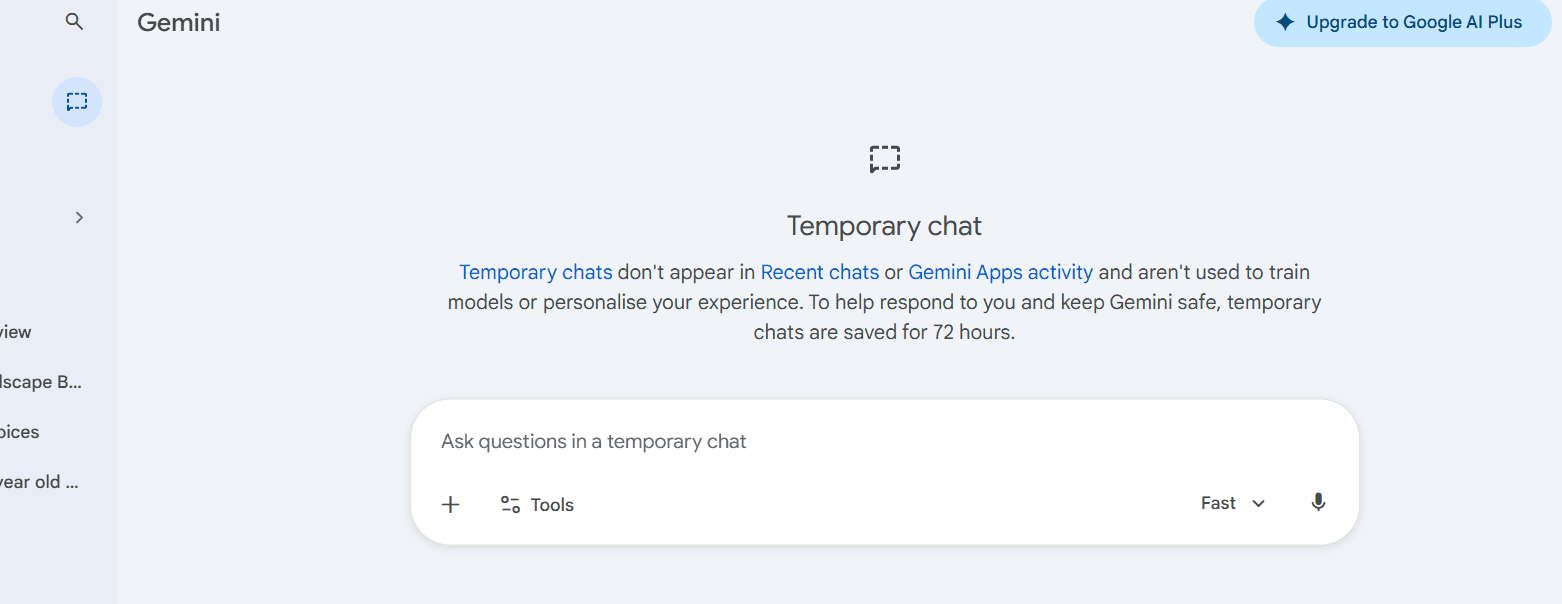
In Temporary Chat mode, the session won't appear in your Gemini Apps Activity, won't update your Personal context, and won't be used to train Google's models. Google retains Temporary Chat content for up to 72 hours to process responses — after that, it's deleted.
🔵 Using Temporary Chat a lot? It usually means you want privacy, but you might still want your own record of what was discussed. XTrace works alongside Temporary Chat — it captures your prompts and responses locally as you go, so useful context isn't lost when the session ends.
Quick Recap: All Gemini Memory Settings
Setting | Where to Find It | What It Does |
|---|---|---|
Memory toggle | Settings (⚙️) → Personal context | Turn on/off Gemini learning from your past chats |
Your instructions for Gemini | Settings (⚙️) → Personal context | Set standing instructions that apply to every conversation |
Saved facts | Settings (⚙️) → Personal context | View and delete specific things Gemini has stored about you |
Gemini Apps Activity | Settings (⚙️) → Activity | View, delete, or auto-delete your full conversation log |
Activity toggle | myactivity.google.com (Gemini) | Stop Gemini saving your conversations going forward |
Temporary Chat | Menu (☰) → Temporary chat | Start a session that won't be saved or affect your memory |
Managing Memory Across All Your AI Tools
Once I went through my Gemini settings, I found more stored than I expected — conversation history going back over a year, saved preferences I'd forgotten about, standing instructions I'd set up and never revisited. The cleanup wasn't hard, but it meant visiting two separate places (Personal context and myactivity.google.com) that aren't obviously connected from the same screen.
The bigger issue is that most people don't just use Gemini. If you're also using ChatGPT, Claude, or other AI tools, each one is building its own separate picture of you. Checking and managing memory across all of them — platform by platform, in different settings menus — isn't something most people do consistently.
That's the problem XTrace solves. Rather than managing AI memory one platform at a time, XTrace gives you a single place to see and control what's stored across all of them: Gemini, ChatGPT, Claude, and more. It was the thing that made staying on top of my AI memory feel manageable rather than reactive.
Get started with XTrace for free → mem.xtrace.ai
If you use more than one AI tool, tracking what each one knows about you gets complicated fast. XTrace gives you a single dashboard to view and control your AI memory across Gemini, ChatGPT, Claude, and more — without digging through each platform's settings separately.
Last updated March 2026. Gemini's interface may change. Settings are always accessible at gemini.google.com via the Settings cog (⚙️) in the bottom-left corner.
Frequently asked questions
How do I delete my Gemini memory?
+
To delete specific memories, go to Settings (⚙️) → Personal context, find the saved fact you want to remove, click the three-dot menu, and select Delete. You can also type "Forget that I mentioned [X]" directly in any chat and Gemini will remove it. To delete your full conversation history, go to Settings (⚙️) → Activity, click the Delete dropdown, and select All time. Note that deleting activity doesn't stop Gemini from logging new conversations — you'll need to toggle Activity off separately at the top of the same page.
Does Gemini save my conversations?
+
Yes. By default, Gemini saves your conversations in two ways. First, it stores a full log of every chat under Gemini Apps Activity, linked to your Google Account at myactivity.google.com. Second, its Memory feature learns personal details from your conversations — like your job, preferences, and interests — and uses them to personalize future responses. Both are enabled by default and managed in separate settings, so turning one off doesn't affect the other. To check what's stored, click the Settings cog (⚙️) in Gemini's bottom-left corner and review both Personal context and Activity.
How do I turn off Gemini memory and activity tracking?
+
To stop Gemini from learning about you, go to Settings (⚙️) → Personal context and toggle Memory to Off. This prevents Gemini from using past chats to personalize responses, but doesn't erase what it's already saved — you'll need to delete saved facts individually. To stop conversation logging, go to Settings (⚙️) → Activity and toggle the On/Off switch at the top of the page to Off. For one-off private sessions without changing your settings, use Temporary Chat from the hamburger menu (☰) — these sessions won't appear in your activity or update your memory.
Back to articles