Claude Memory: How to Manage and Enable
Share to

When you close a conversation with Claude and open a new one, you're talking to a mind with no recollection of your previous exchange. Not because it forgot — but because it was never designed to remember. This statelessness is intentional, but it doesn't make memory impossible. It just means memory is something you construct, not something you assume.
This post unpacks the four types of memory available to Claude, how its context window actually works, and the concrete techniques power users and developers use to give Claude a meaningful, persistent sense of history.
1. The Four Types of Memory
Claude's relationship with information falls into four distinct types, each with different lifespans and mechanisms.
Memory type | What it is | Lifespan |
|---|---|---|
In-context | Everything in the active conversation window | Ends with the session |
External storage | Databases and files retrieved and injected at runtime | Persistent (you manage it) |
In-weights | Knowledge baked in during training | Permanent (until retrained) |
Cache (KV) | Reusable computation stored for repeated prompts | Short-term (API level) |
Most everyday users only interact with the first type. Developers and power users leverage all four — and the gap in capability is enormous.
2. The Context Window: Claude's Working Memory
Think of the context window like a whiteboard. Claude can only work with what's currently written on it. When the conversation ends, the board is erased. When the window fills up, older content scrolls off the edge.
As of March 13, 2026, Claude Opus 4.6 and Sonnet 4.6 both support a 1 million token context window — roughly 750,000 words, or about ten full-length novels — at standard pricing with no long-context surcharge. A 900K-token request costs the same per token as a 9K one. In practice, a well-structured session might allocate that space roughly like this:
~5% — System prompt (persona, instructions, constraints)
~25% — Active conversation history
~40% — Retrieved documents or injected context
~30% — Available headroom for outputs and reasoning
💡 Key insight: Even with 1M tokens available, the goal isn't to fill it — it's to fill it intelligently. Every token still costs latency and compute, and noisy context degrades output quality.
3. How Claude.ai's Built-in Memory Works
Claude.ai has a native memory feature that automatically extracts facts from your conversations and surfaces them in future sessions. Mention you're a founder building a B2B SaaS, and Claude will carry that context forward without you repeating it.
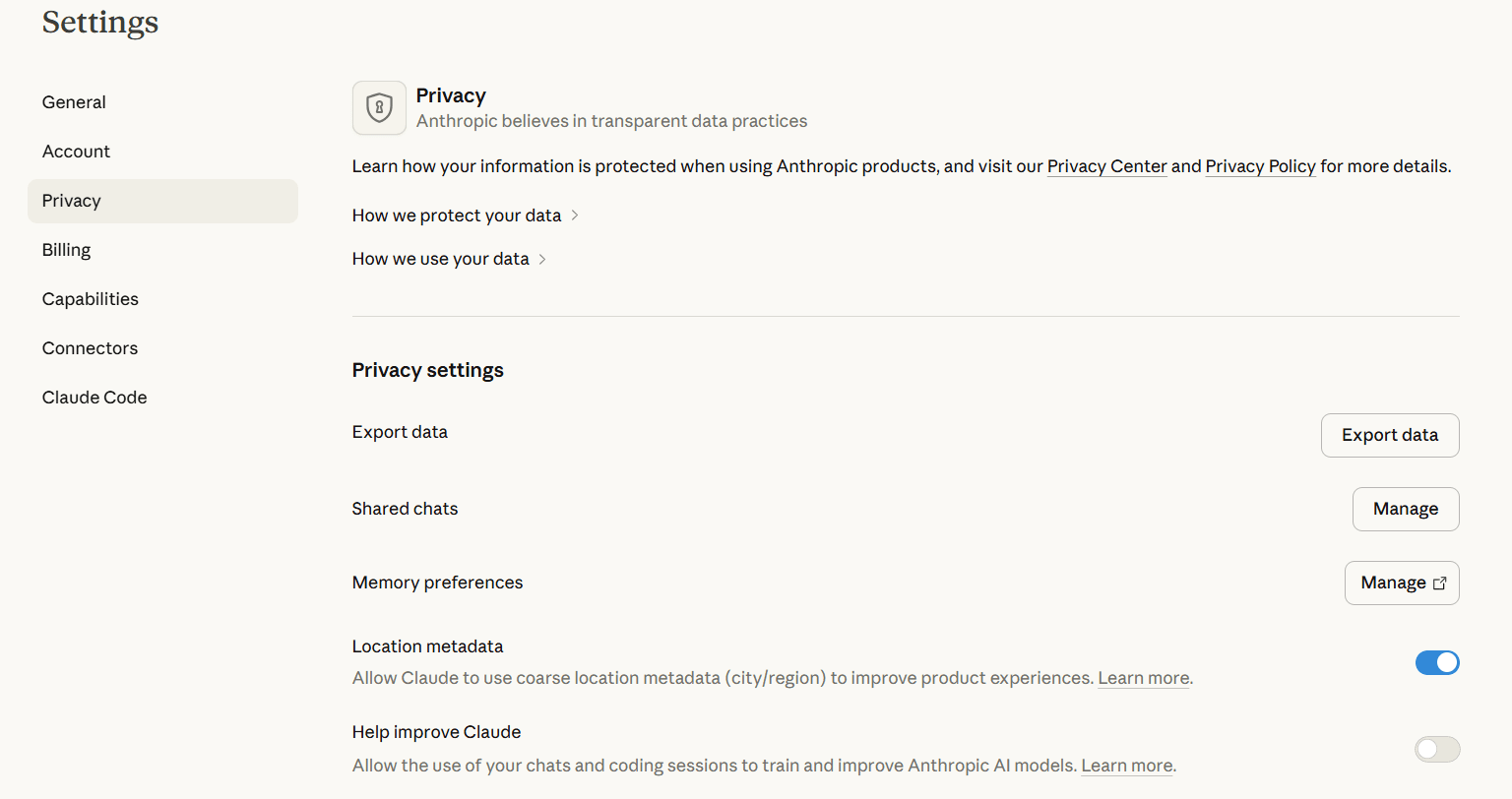
The setting is called "Generate memory from chat history" and lives at Settings → Memory. When enabled, Claude scans your entire chat history to build and maintain a memory profile about you.
There's also a second option worth knowing about: "Import memory from other AI providers." This lets you bring your existing context from ChatGPT, Gemini, or other tools directly into Claude. Claude generates a prompt you can use to fetch that memory from your other account, then imports it. Handy if you're switching tools or want Claude to know what your other AI already does.
To view your saved memories:
Sign into claude.ai
Open Settings → Capabilities → Memory
You'll see a full list of everything Claude has saved about you
You can also ask Claude directly: "What do you remember about me?" — and it will list what it has stored.
To delete memory:
Go to Settings → Capabilities → Memory
Click the delete icon next to it and confirm
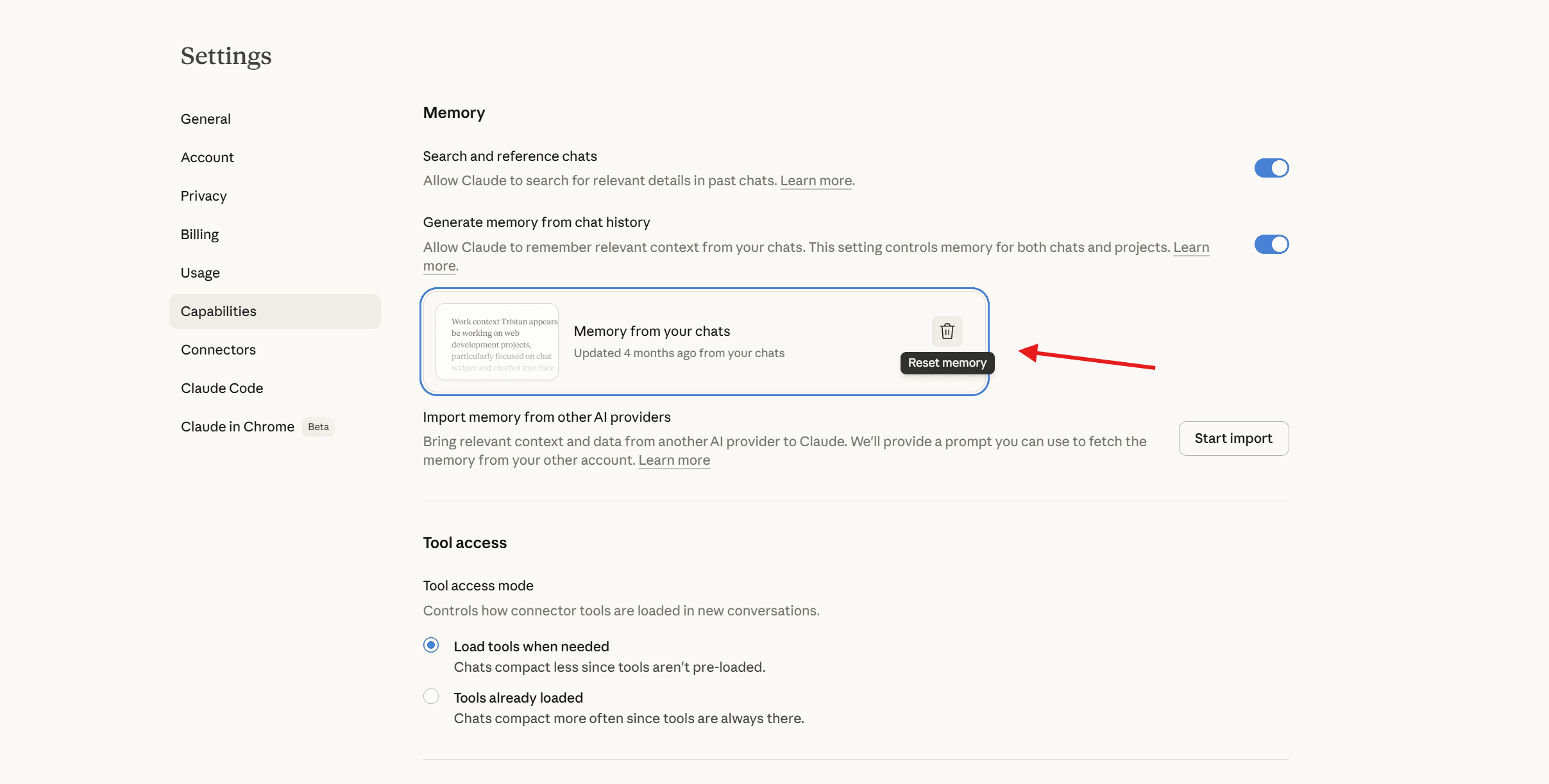
⚠️ Important: Clearing memories only deletes saved entries. It doesn't stop Claude from creating new ones in future conversations unless you also toggle off "Generate memory from chat history."
🔵 Want a copy of your Claude memory that you actually own? Before clearing, it's worth saving your context somewhere you control. The XTrace Chrome extension automatically captures your AI context as you work, giving you a private, searchable record that lives with you — not on Anthropic's servers.
4. How to Turn Memory Off Entirely
If you'd rather Claude not store anything about you going forward, you can disable the feature entirely.
Go to Settings → Capabilities → Memory
Toggle off "Generate memory from chat history" — this stops Claude from building or referencing your memory profile going forward
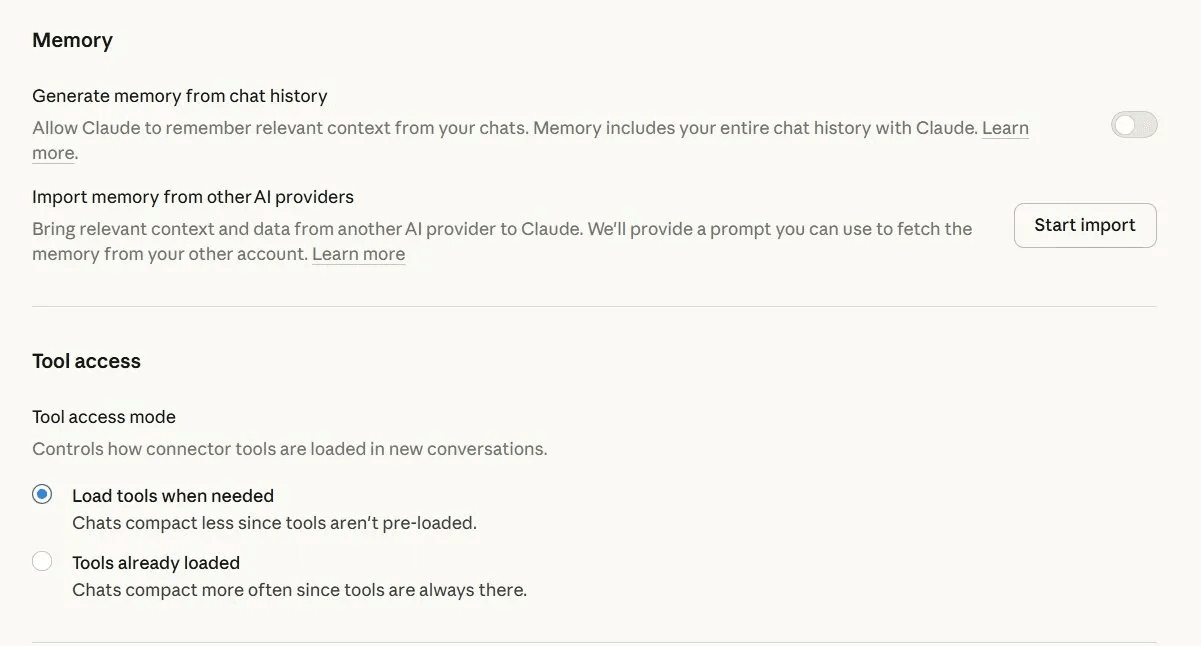
Turning memory off doesn't automatically delete what's already stored. If you want a full reset, do both: toggle off "Generate memory from chat history" and clear your saved memories using the steps above.
🔵 Still want memory — just not Anthropic's version? Turning off Claude memory means the AI stops personalising to you over time, which can make it feel less useful. If your real concern is data ownership rather than losing the benefit entirely, the XTrace Chrome extension gives you the same persistent context experience with your data encrypted and owned by you, not stored on Anthropic's servers.
5. Persistence Strategies That Actually Work
Since Claude has no native long-term memory beyond the built-in feature, persistence has to be engineered. Here's how it's done across the spectrum — from zero-code to full API integration.
Approach | How it works | Best for | Effort |
|---|---|---|---|
Memory feature (claude.ai) | Claude auto-generates facts and surfaces them in future sessions | Personal use | None |
System prompt injection | Relevant context appended to the system prompt before each API call | Consistent persona or user profile | Low |
Conversation summarization | Ask Claude to compress a long thread into a dense summary, then carry it forward | Long-running workflows | Medium |
Vector database + RAG | Embed past interactions, retrieve semantically relevant ones per query | Production apps, agents | High |
🔵 If you use Claude alongside other AI tools like ChatGPT or Gemini, each one builds its own separate memory profile on you. The XTrace Chrome extension gives you a single dashboard to view and manage what's stored across all of them — without digging through each platform's settings separately.
6. Best Practices for Memory Management
Compress early, compress often
Once a thread hits a few thousand tokens, ask Claude to produce a structured summary before continuing. A 4,000-token summary of a 40,000-token thread preserves 90% of the useful signal.
Be selective with retrieval
When building RAG pipelines, resist injecting everything. Retrieve the 3–5 most relevant chunks, not 30. Noisy context degrades output quality more than missing context does.
Use prompt caching for stable content
If your system prompt or a reference document stays the same across many API calls, use prompt caching. This cuts cost and latency substantially on repeated requests.
Separate episodic from semantic memory
Store facts (user preferences, project details) differently from conversation history. Facts belong in a structured store; history belongs compressed and time-indexed.
Timestamp everything
When injecting retrieved memories, always include when each piece of information was recorded. Claude uses temporal context to resolve contradictions and weight recency appropriately.
🔵 Doing this manually across multiple AI tools is exactly the kind of tedious work that doesn't stick. The XTrace Chrome extension handles the capture and organisation automatically — so your AI context stays clean and searchable without you having to think about it.
Managing Memory Across All Your AI Tools
After going through my own Claude memory settings, I found dozens of entries: project details, preferences, opinions I'd mentioned in passing. The cleanup wasn't hard, but it was manual and reactive.
The bigger problem is that most people don't just use Claude. If you're also using ChatGPT, Gemini, or other tools, each one is building its own separate memory profile on you. Checking and managing them individually across multiple settings menus isn't a workflow anyone maintains consistently.
That's the problem XTrace solves. Instead of managing AI memory platform by platform, XTrace gives you a single place to see and control what's stored across all of them — ChatGPT, Claude, Gemini, and more. It was the thing that finally made staying on top of my AI memory feel manageable rather than reactive.
Get started with XTrace for free → Install the Chrome extension
If you use more than one AI tool, tracking what each one knows about you gets complicated fast. XTrace gives you a single dashboard to view and control your AI memory across ChatGPT, Claude, Gemini, and more — without digging through each platform's settings separately.
Quick Recap: All Memory Settings
Setting | Where to find it | What it does |
|---|---|---|
Generate memory from chat history | Settings → Memory | Toggles whether Claude scans your chats and builds a memory profile |
Import memory from other AI providers | Settings → Memory | Brings your context from ChatGPT, Gemini, etc. into Claude |
Clear all memories | Settings → Memory | Wipes all saved memories permanently |
View saved memories | Settings → Memory | See and delete individual memory entries |
Last updated March 2026. Claude.ai's interface may change. Memory settings are always accessible from the Settings menu.
Frequently asked questions
Does Claude remember previous conversations?
+
No. By default, each new Claude conversation starts with no memory of past sessions. Claude's context window — its working memory — is erased when a conversation ends. However, Claude.ai now has a built-in memory feature that, when enabled, automatically extracts facts from your chats and surfaces them in future sessions. This setting is called "Generate memory from chat history" and lives under Settings → Capabilities → Memory. When turned on, Claude will carry forward details like your name, role, preferences, and project context without you needing to repeat them. You can view everything Claude has saved by visiting Settings → Capabilities → Memory or by asking Claude directly: "What do you remember about me?"
How do I clear Claude's memory?
+
To delete Claude's saved memories, go to Settings → Capabilities → Memory in Claude.ai. You'll see a list of everything Claude has stored about you. Click the delete icon next to any individual entry to remove it, or clear all memories at once. Important: clearing memories only deletes what's already been saved — it doesn't stop Claude from creating new ones. To fully stop memory from building up again, you also need to toggle off "Generate memory from chat history" on the same settings page. Do both steps for a complete reset.
How do I turn off memory in Claude?
+
To stop Claude from saving information about you, go to Settings → Capabilities → Memory and toggle off "Generate memory from chat history." This prevents Claude from scanning your conversations and building a memory profile going forward. It does not automatically delete memories that have already been stored — to remove those, you'll need to clear your saved memories separately from the same settings page. For developers using the API, Claude has no built-in memory by default; persistence must be engineered through techniques like system prompt injection, conversation summarization, or vector database retrieval.
Back to articles