How to Set Up XTrace Private Vector DB (Step-by-Step)
Share to
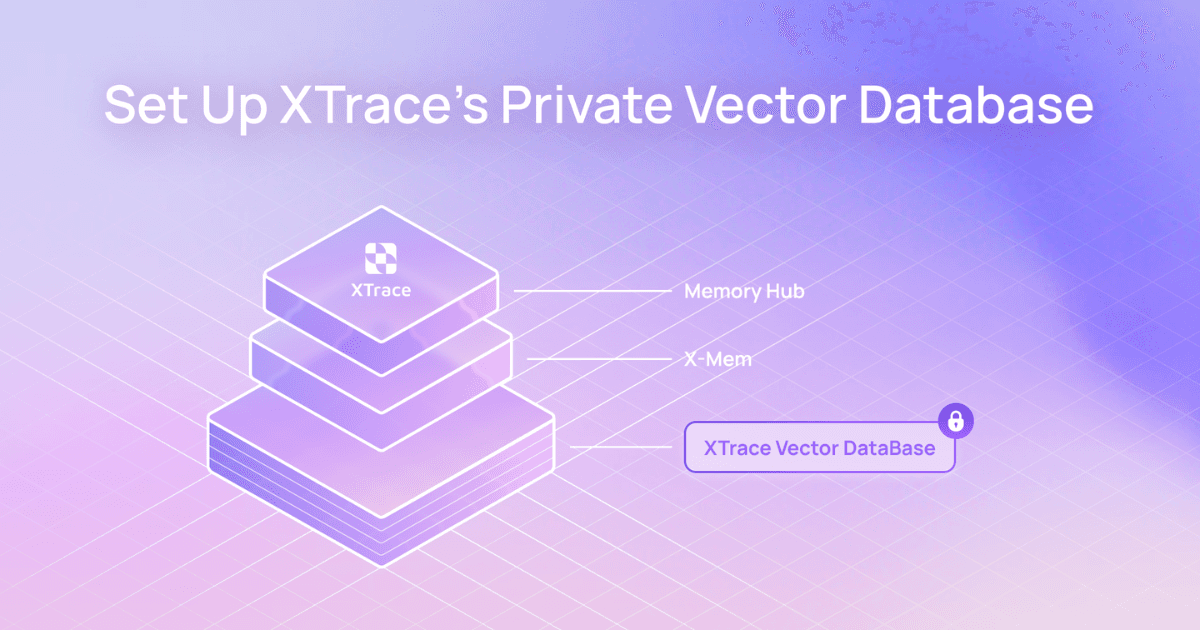
If you are building RAG, agent memory, or internal search over sensitive data, the usual vector DB setup can feel like a bad tradeoff. You get semantic search, but the storage layer can still read your documents, vectors, and queries.
XTrace is built for a different model. This post gives you the fast version of how to set it up, and the full video walkthrough is below. If you want the full walkthrough, watch the setup video. If you want the fast version, this post will get you oriented in a few minutes.
XTrace lets you run vector search without giving the server readable access to your documents, vectors, or queries. The detailed setup is already covered in the video, so this post is here to make the flow easy to scan and easy to remember.
Watch the full video walkthrough: https://youtu.be/gt7RwVD9eEc
What you are doing
At a high level, the setup looks like this:
Get your API key
Install the CLI
Initialize your session
Create your execution context
Create a knowledge base
Write files into it
Run semantic search
That is the whole flow.
1. Get your API key
Start by creating an account in the XTrace app and generating your API key.
If you are using the admin flow shown in the video, you will also want your:
organization ID
admin key
Store them somewhere secure.
2. Install the CLI
The video uses the XTrace CLI to get started because it is the fastest way to explore the private vector DB flow.
Once the package is installed and the xtrace command is available in your terminal, you are ready to move on.
If you want exact commands, use the video and docs side by side.
3. Initialize your session
Open the XTrace shell and run the init flow.
This is where you enter your credentials and choose how your local setup will work. If you are following the demo, this is done in admin mode.
This part matters because XTrace is not just asking for a hosted API connection. It is setting up the local context that will control how your encrypted data is accessed.
4. Create your execution context
This is the most important concept in the setup.
Your execution context is the local object on your machine that holds the credentials and encryption material needed to access your data.
It includes the keys that protect:
your vectors
your content
Those keys are locked behind a passphrase.
That passphrase matters a lot. If you lose it, you lose the ability to decrypt your data. So do not treat it like a throwaway setup step. Treat it like the key to the system.
5. Choose your embedding model
In the video, the privacy-friendly path is to use a local embedding model.
That keeps more of the pipeline on your own machine and fits the whole point of a private vector database. You are not trying to build a setup where the storage layer is blind, then immediately send raw content somewhere else upstream without thinking about it.
6. Create a knowledge base
Once your execution context is ready, create a knowledge base.
A knowledge base is the container for the encrypted documents and vectors you want to work with.
The clean way to think about it is:
execution context = how your machine unlocks and accesses data
knowledge base = where your encrypted data lives
7. Write files into the knowledge base
Now you can load files.
This is where the difference between XTrace and a normal vector DB becomes concrete. You are not just uploading plaintext documents into a searchable system. The documents are encrypted before upload, and the vectors are encrypted too.
The server stores ciphertext, not readable source material.
8. Run semantic search
Once your knowledge base has data in it, you can search it.
In the XTrace model, the query is encrypted before it is sent. The server performs search on encrypted data, then returns encrypted results, which are decrypted locally.
That is the whole point of the setup.
You still get semantic search. But the infrastructure does not get readable access to the underlying data.
Things to pay attention to
Your passphrase
This is the big one.
If you forget it, you lose the ability to decrypt your data. Pick something strong and store it safely.
Your embedding model choice
If privacy is the goal, think through your embedding setup too. A local model is the cleanest fit for this flow.
Your metadata
Even in systems built for privacy, metadata design still matters. Do not casually put sensitive identifiers into metadata fields unless you are sure that is how you want the system to behave.
Who this is for
This setup makes the most sense if you are building:
RAG over sensitive documents
internal enterprise search
legal or healthcare retrieval systems
AI memory systems
agents that should remember without exposing that memory to the storage layer
If that is your use case, this flow is worth understanding.
Where to go next
For the full walkthrough, watch the video:
YouTube walkthrough: https://youtu.be/gt7RwVD9eEc
For the latest implementation details and docs:
Docs: https://docs.xtrace.ai
And if you have not read the earlier posts in this series yet:
Your Vector Database Can Read Your Data
“Encrypted at Rest” Doesn’t Mean Private
The short version is simple:
Your vector DB should not be able to read your data.
Frequently asked questions
Can my vector database read my data?
+
Yes. Most vector databases store your documents, vectors, and queries in plaintext or with standard encryption at rest, which means the storage layer has readable access to your data. Even if the connection is encrypted in transit, the server itself can see what you store and search. XTrace works differently. Documents and vectors are encrypted before they leave your machine, queries are encrypted before they are sent, and the server only ever stores and searches over ciphertext. You get semantic search without giving the infrastructure readable access to your underlying data.
How does encrypted vector search work?
+
Encrypted vector search lets you run semantic similarity queries without exposing your data to the server. In XTrace, the flow works like this: your documents are encrypted locally before upload, the embedding vectors are encrypted too, and when you run a search, your query is encrypted before it is sent. The server performs the search entirely on encrypted data, returns encrypted results, and your machine decrypts them locally. The result is the same semantic search experience you get from a standard vector database, but the storage layer never sees readable content, vectors, or queries.
How do I set up a private vector database for RAG over sensitive documents?
+
To build RAG over sensitive data without exposing it to your storage layer, you need a vector database that supports encrypted search. With XTrace, the setup takes a few steps: generate your API key, install the CLI, initialize your session, and create an execution context. The execution context holds the encryption keys on your local machine, locked behind a passphrase. From there, you create a knowledge base, load your documents (which are encrypted before upload), and run semantic search with encrypted queries. The full setup works for RAG pipelines, internal enterprise search, legal and healthcare retrieval, and AI agent memory systems. A detailed video walkthrough is available at youtube.com/watch?v=gt7RwVD9eEc and implementation docs are at docs.xtrace.ai.
Back to articles